
This guide explains how to install LoadMaster on a Windows workstation. AirFrame Connect is the Media-Anywhere desktop application that installs and manages the AirFrame.One plugin and Panel for Adobe Premiere Pro.
Before you start, make sure your system meets the requirements listed in Supported & Recommended Platforms. It is recommended to close all other applications, including Adobe Premiere Pro, before starting the installation.
Installation steps
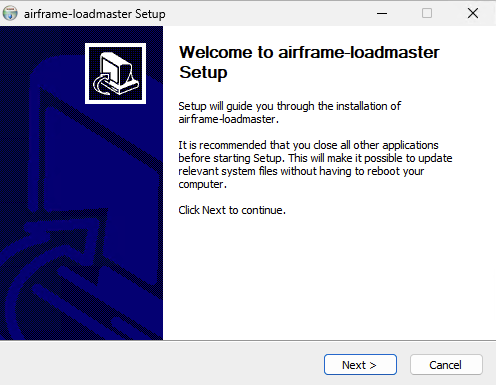
1. Download the AirFrame Connect installer (.exe) using the download link provided by Media-Anywhere, then double-click it to start Setup. The welcome screen appears. Click Next to continue.
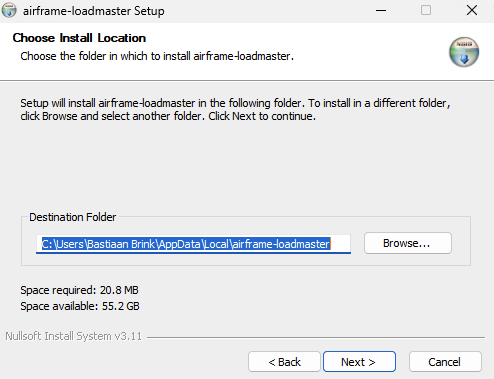
2. Choose the installation folder. The default location is C:\Users\<your username>\AppData\Local\airframe-connect, which works for most users. Click Next to continue.
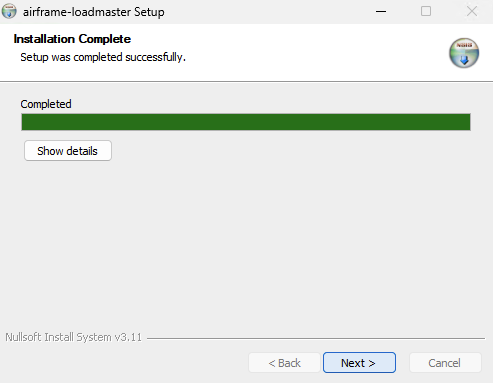
3. Setup installs Connect on your computer. When the progress bar shows Completed, click Next.
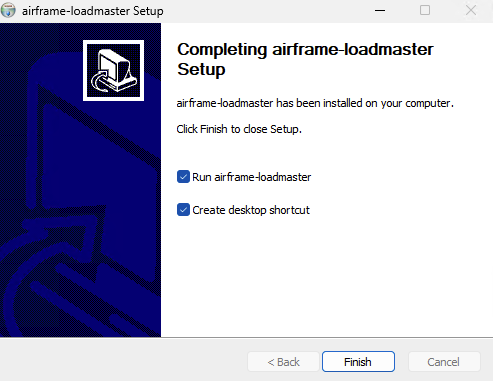
4. On the final screen, keep Run airframe-connect selected so Connect starts right away. Optionally, keep Create desktop shortcut selected. Click Finish to close Setup.
5. AirFrame Connect opens and shows the AirFrame Adobe Premiere Pro Plugin and Panel, both marked as Not installed. If the window does not open automatically, click the Connect icon in the system tray in the bottom-right corner of your screen.
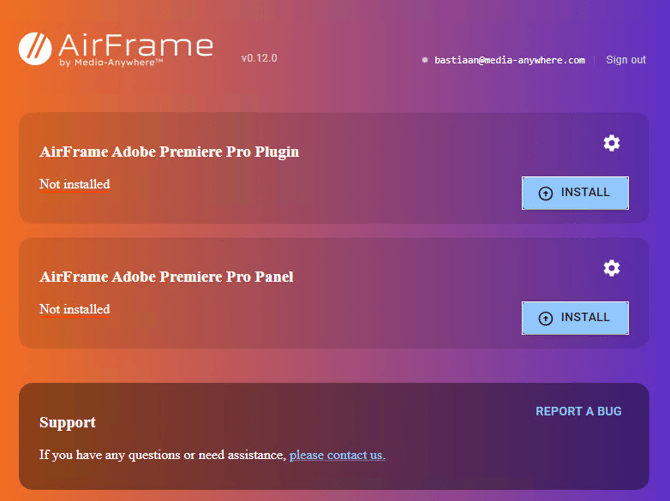
6. Click Install next to the AirFrame Adobe Premiere Pro Plugin.
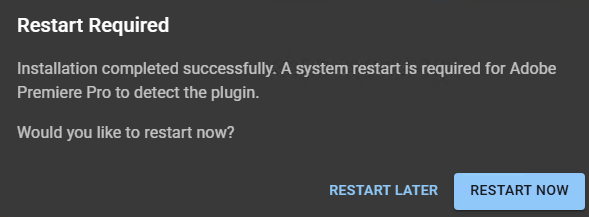
7. After the installation completes, Connect asks you to restart your computer. This restart is required for Adobe Premiere Pro to detect the plugin. Click Restart Later for now, so you can first install the Panel as well.
8. Click Install next to the AirFrame Adobe Premiere Pro Panel and wait for the installation to complete.
9. Once both installations are complete, the Connect window shows the installed Plugin and Panel versions.
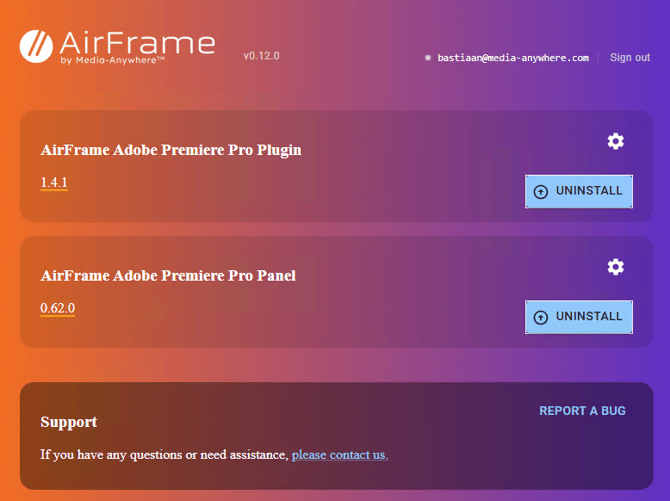
10. Restart your computer to complete the installation. After the restart, Adobe Premiere Pro will detect the AirFrame.One plugin.
Next steps
Continue with Getting started with the AirFrame.One panel to sign in and link your first media.
In case of any additional questions, please contact our support team at support@media-anywhere.com.