
This guide outlines best practices for working efficiently with AirFrame.One in Adobe Premiere Pro. The settings below reduce unnecessary cloud egress traffic and improve overall responsiveness, especially with LongGOP media formats such as H.264, H.265 and XAVC LongGOP.
| Setting | Location | Recommended |
|---|---|---|
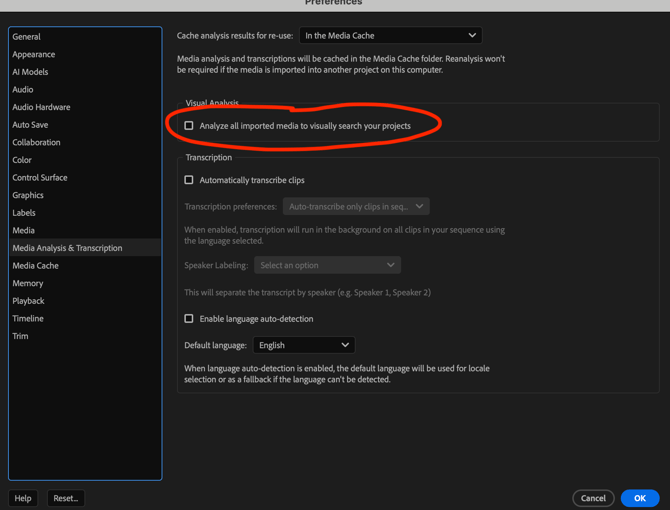
| Analyze all imported media to visually search your projects | Preferences → Media Analysis & Transcription | Off |
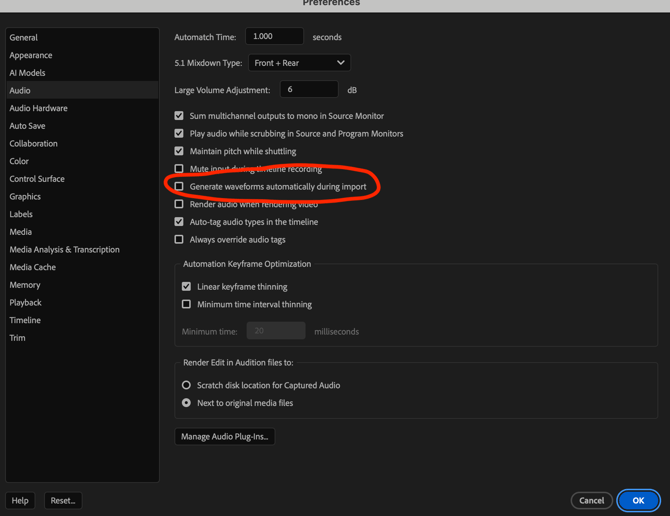
| Generate waveforms automatically during import | Preferences → Audio | Off |
Disable automatic AI analysis of imported media
AI analysis can cause Premiere Pro to read significantly more data from media assets during import than is required for normal editing workflows.
Disable the following setting in Adobe Premiere Pro:
Preferences → Media Analysis & Transcription
- Disable: Analyze all imported media to visually search your projects
This minimizes unnecessary background processing and improves the experience when browsing and importing media stored remotely.
Disable automatic waveform generation during import
When enabled, Premiere Pro reads the full audio stream of imported assets immediately in order to generate waveforms, which can significantly increase background data usage when working with remote media.
Disable the following setting in Adobe Premiere Pro:
Preferences → Audio
- Disable: Generate waveforms automatically during import
Waveforms for clips added to the timeline are still generated automatically on an as-needed basis during editing, so normal editing functionality is maintained.
 Note for administrators
When deploying Adobe Premiere Pro to multiple workstations, these preferences can be preconfigured centrally so editors do not have to apply them manually. Contact our support team if you would like guidance for your deployment.