
This guide shows how to sign in to the AirFrame.One panel in Adobe Premiere Pro, browse your storage and link media into your project. If the panel is not available in Premiere Pro yet, first see Verifying the AirFrame.One panel in Premiere Pro.
Sign in
- In Premiere Pro, open Window → Extensions → AirFrame.One.
- Fill in the credentials you have received and click Sign in.

- After signing in, the main window appears, showing a directory listing of your AirFrame.One storage.
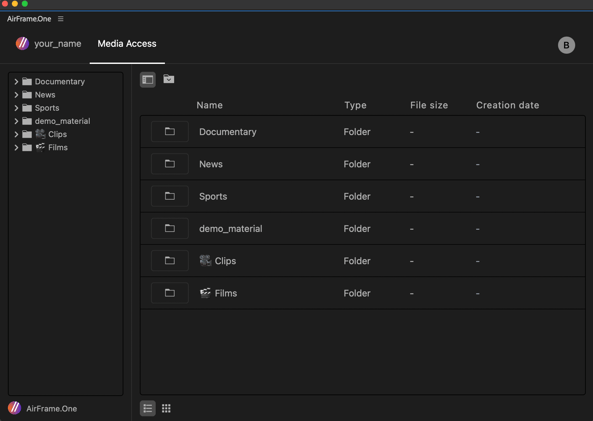
Browse and link media
- Navigate through the folders by double-clicking a folder. In this example we open the demo_material folder.
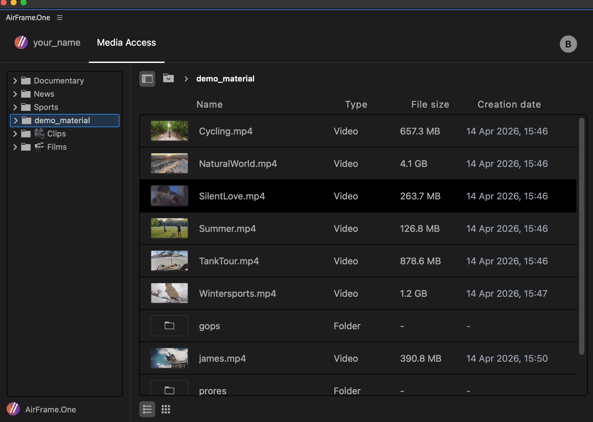
- A list view of clips and subfolders appears. Select one or more files and click Link media to project at the bottom right of the window.
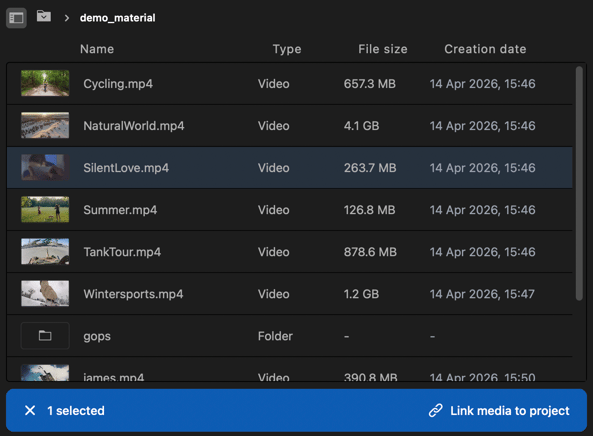
- You can link multiple files in the same way, within a single folder or across multiple folders.
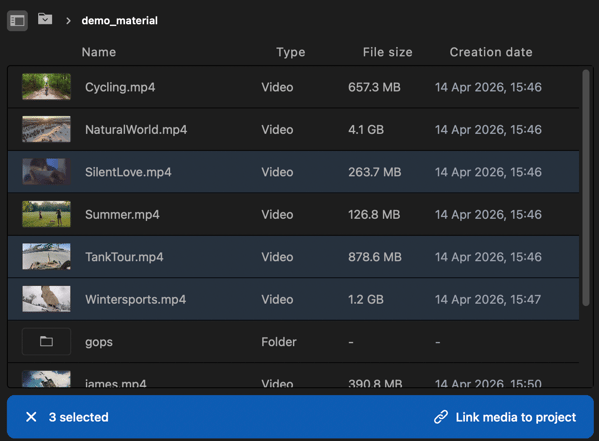
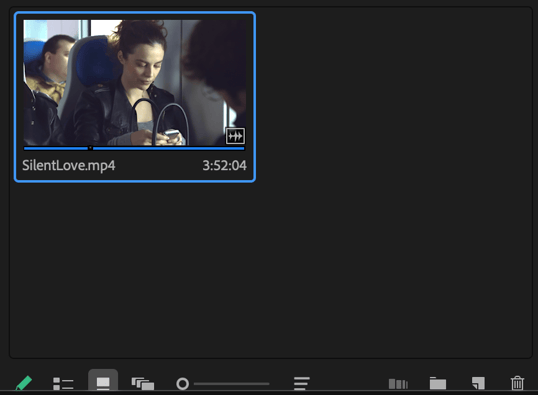
- The selected video files are linked into your Adobe Premiere Pro project bin, directly from AirFrame.One storage.
If you experience any issues operating the panel, please contact our support team at support@media-anywhere.com.